Updating Your WAGGURACY PHAST 1
Keeping your WAGGURACY PHAST 1 up to date with the latest software is essential to ensure optimal performance and access to new features.
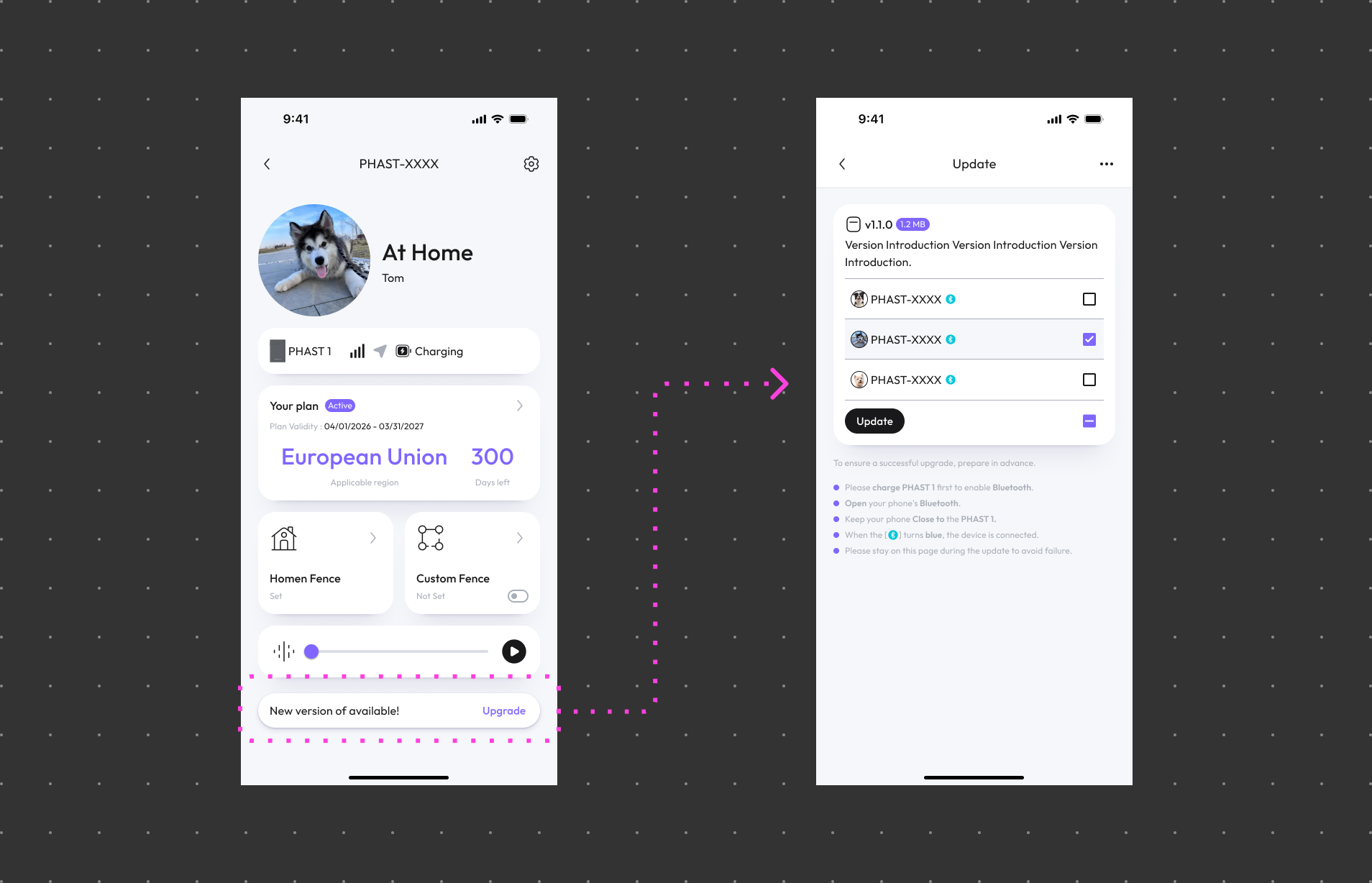
Follow these steps to Update your WAGGURACY PHAST 1:
Step 1: Check for Updates
- Open the WAGGURACY app on your smartphone.
- Log in to your account.
- Tap User > Device Card
Step 2: Check for Available Updates
Tap Upgrade .
This will initiate a check to see if there are any available updates for your WAGGURACY PHAST 1.
Step 3: Download and Install
If an update is available, follow the prompts to download and install it.
Activate the Bluetooth module
After charging your PHAST 1, the device will automatically activate its Bluetooth module and enter pairing mode.
Connect the device
Go to your phone’s Bluetooth settings and connect to “PHAST 1.”
Perform the Bluetooth update
When the Bluetooth icon lights up, your PHAST 1 is ready. Simply select the device and tap Update to begin. For a smooth upgrade experience, please remain on this page until the process is complete.
Step 4: Restart and Verify
After the update is installed, you may be prompted to restart your WAGGURACY PHAST 1. Once it's back online, verify that the update has been successfully applied by checking the device's settings.
Step 5: Enjoy New Features
Updated software may introduce new features, improvements, and bug fixes. Explore the WAGGURACY app to discover any changes and enhancements resulting from the update.
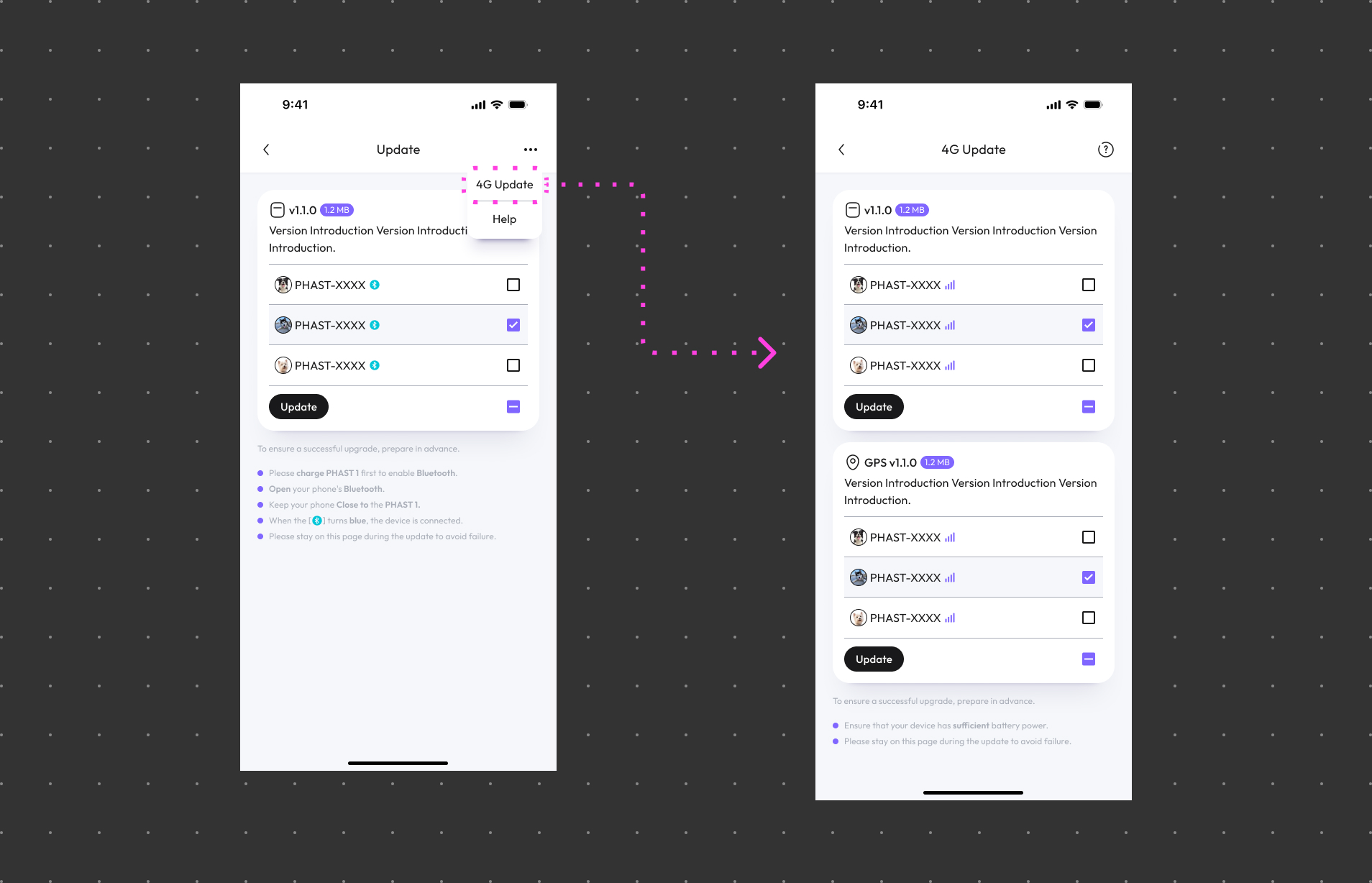
Step 1: Download and Install
If an update is available, follow the prompts to download and install it.
Please ensure that PHAST 1’s 4G signal remains stable.
Ensure that your device has sufficient battery power.
During the device upgrade, low battery levels can lead to upgrade failures or device damage. It is recommended to connect your device to a power adapter and keep it charging.
Step 2: Restart and Verify
After the update is installed, you may be prompted to restart your WAGGURACY PHAST 1. Once it's back online, verify that the update has been successfully applied by checking the device's settings.
Step 3: Enjoy New Features
Updated software may introduce new features, improvements, and bug fixes. Explore the WAGGURACY app to discover any changes and enhancements resulting from the update.
Important Tips:
- It's recommended to keep your WAGGURACY app up to date as well, as new device updates might require app compatibility.
- Be patient during the update process, as it might take some time based on your device and internet speed.
- If you encounter any issues during the update or have questions, refer to the official WAGGURACY documentation or contact customer support for assistance.
- Remember, regular updates contribute to the overall performance and security of your WAGGURACY PHAST 1, ensuring the best experience for you and your pet.